Features tour
The screenshots on this page are drawn by waved’s own UI code: they are the images its snapshot tests compare every screen against. Some of them show test data, such as a made-up phone number or server name.
Each section ends with a status, worded as on the Overview: “on the Wave” means it has run on a real Wave, “host-tested” means it passes its tests on a computer but has not run on a Wave yet.
The dial and home screen
Section titled “The dial and home screen”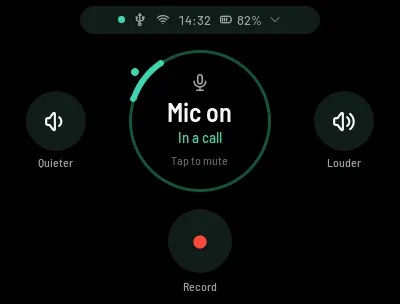
Home is built around a dial. Tap it to mute or unmute the microphones. Quieter and Louder step the speaker volume by 10 %, and the dial shows the volume for a moment. Record sits below. To open the Menu, tap the status pill at the top or swipe down from the top edge.
The ring and the line inside the dial tell you where your voice goes:
| Ring | Line in the dial | When |
|---|---|---|
| Grey | Not connected; Connected by USB; or Bluetooth and the phone’s name | Nothing is using the microphones |
| Teal | Computer is listening | The computer has the USB microphone open |
| Teal | In a call | The computer reports a call over USB, or a Bluetooth call is up |
| Red | Mic is off, or Call can’t hear you | Muted |
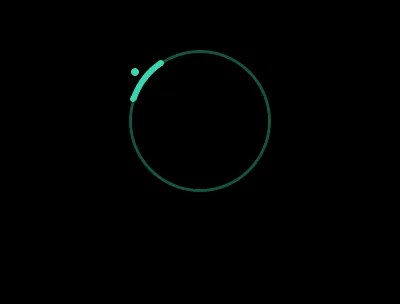
While the ring is teal, a short bright arc on it points at whoever is talking. It comes from the microphones’ direction estimate and only shows while that estimate is confident.
Status: Works, on the Wave.
More: Display, and for the talker arc’s direction, Audio hardware.
Recording
Section titled “Recording”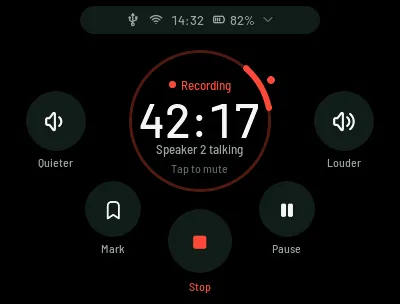
Tap Record on Home. The dial shows a timer and who is talking. Speakers get a
number per recording, from the direction their voice comes from; waved never
puts names on them. Mark adds a bookmark at the current time, and Pause pauses
and resumes. Mute still works: a muted stretch is silence in the recording,
and the dial says “Muted, not recorded”. The Wave plays a short tone when a
recording starts and when it stops (tones.enabled in config.toml).
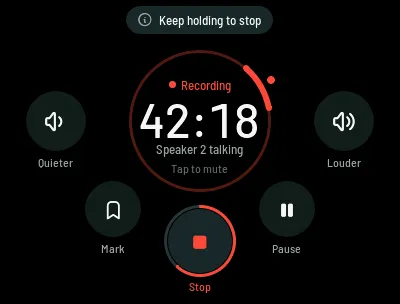
To stop, hold Stop for one second. A red ring fills around the button while you hold. A short tap only shows “Hold Stop to end the recording”.
Pre-recording is off by default. Turn it on in Menu → System →
Pre-recording, or with recording.pre_recording in config.toml. While it
is on, the Wave keeps the last 30 seconds in memory, and Record starts the
file with them. A teal dot leads the status pill while that buffer is filling.
The dot goes away while the microphones are muted.
Each recording is a folder in /mnt/udisk/recordings with the audio (mono,
48 kHz) and metadata.json. The audio is audio.opus (Ogg Opus at 32 kbps,
about 15 MB an hour) by default, or audio.flac (lossless, about 200 MB an
hour) if you pick FLAC in Menu → System → Recording format or on the setup
page. A change applies to the next recording. Recordings made before
2026-10-14 are audio.wav, and they still play and upload. During a call the
recording holds both sides: the room and the far end.
Status: Works, on the Wave. The one-hour and power-loss certification is still to do.
More: Recording webhooks.
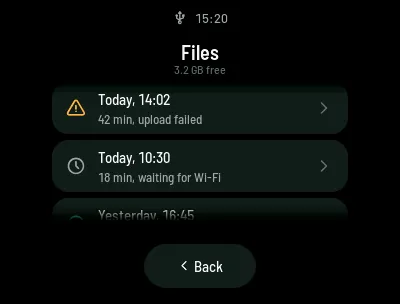
Menu → Files lists your recordings, newest first, with the free space under the title. Each card shows when the recording started, how long it is and its upload state. One that needs attention, such as a failed upload, shows in amber. Tap a card to open it.
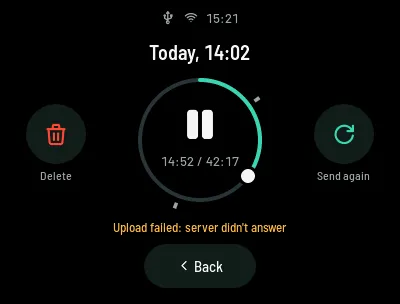
The dial becomes a playback ring. Tap the centre to play or pause through the Wave’s speaker, and drag along the ring to seek. Ticks on the ring are your marks. Playback pauses by itself during a call or a recording. Delete asks before it deletes. Send queues the recording for upload; after a failure it reads Send again, and the reason shows under the buttons.
Status: Works, on the Wave.
More: Recording webhooks, local retention.
Audio modes
Section titled “Audio modes”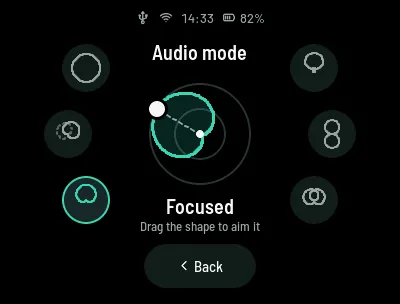
Menu → Audio mode sets how the eight microphones listen. There are six modes:
| Mode | Picks up |
|---|---|
| Whole room | All around the Wave |
| Follow talker | A focused beam that turns to whoever is talking |
| Focused | One direction (a cardioid) |
| Narrow | One direction, tighter than Focused (a supercardioid) |
| Two sides | Two opposite directions (a figure-8) |
| Stereo | Left and right, as the Wave faces |
To aim Focused, Narrow or Two sides, drag the shape in the middle of the
screen. The aim is saved (audio.beam_aim_deg). Over USB, Stereo sends a
left and right pair; the other modes send the same signal on both channels.
The config values are in First setup.
Noise reduction has its own row in the Menu. Leave it at Off for now: on the Wave’s CPU it is too slow, and the audio to the computer breaks up (Audio hardware).
Status: Works, on the Wave.
More: Audio hardware.
Bluetooth audio and calls
Section titled “Bluetooth audio and calls”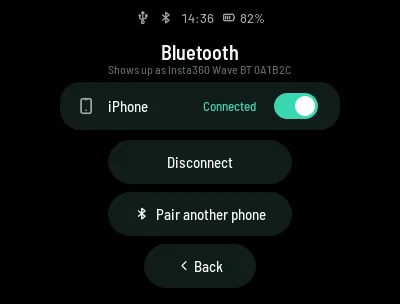
Menu → Bluetooth shows the connected phone with Disconnect. With no phone connected, Pair a device makes the Wave visible for two minutes and shows the name to pick on your phone. The Bluetooth module keeps its own pairings and has no command to list or forget them, so the Wave shows only the connected phone. A phone paired before reconnects by itself.
When a call rings, the call screen takes over, also during a recording. It shows the caller’s number with Decline and Answer. It never shows a name: waved doesn’t read the phone’s contacts. Once the call is up the screen reads In a call, with Hang up.
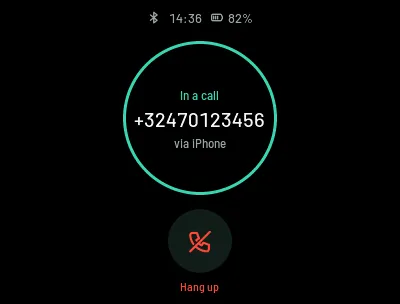
The phone’s audio plays through the Wave’s speaker, mixed with USB audio, and goes into recordings as the far end. The phone gets the processed microphone signal, in mono.
Status:
- Pairing and calls: Host-tested. The Bluetooth module’s pairing commands were checked on the Wave.
- Phone audio: Host-tested.
More: Bluetooth protocol and Audio hardware.
Uploads and webhooks
Section titled “Uploads and webhooks”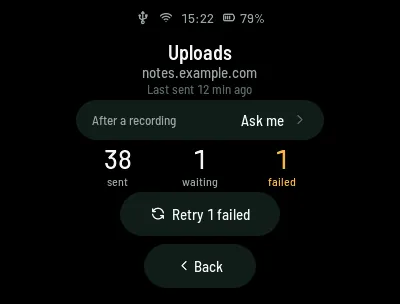
The Wave can send each recording to a server you run, as one HTTP POST
(a webhook). You set the server’s address on the setup page. Menu → Uploads
shows the server, when a recording was last sent, and how many were sent, are
waiting and failed. Retry appears only when something failed. After a
recording sets what happens when you stop: Automatic, Ask me, or Keep on
Wave.
Each recording is saved on the Wave before it is queued, the queue survives a restart, and every retry reuses the recording’s ID as its idempotency key, so your server can drop repeats. When space runs low the Wave removes the oldest recordings that were already uploaded, never unsent ones.
Status: Works, on the Wave. The full failure-and-recovery test is still to do.
More: Recording webhooks and First setup.
Updates
Section titled “Updates”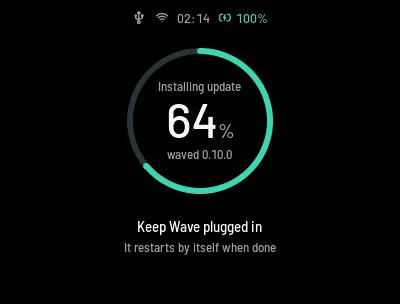
waved can update itself from a server you run. It never asks Insta360. A package is signed with your own key, and a build without your public key compiled in refuses every update. With a server set, the Wave checks two minutes after it starts and then every six hours; Menu → System → Firmware update checks at once.
A new version first runs on trial. If it hasn’t run for 60 seconds with working microphones by the third boot, or keeps crashing, the start-up script puts the previous version and its settings back.
Status: Host-tested only. No part of it has run on a Wave yet.
More: Updates.
PIN lock
Section titled “PIN lock”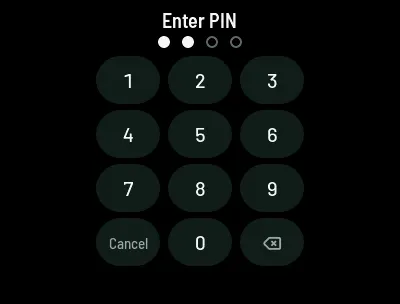
Set a PIN of 4 to 6 digits on the setup page. The Wave then asks for it
before it opens Files, Wi-Fi, Bluetooth, Uploads or System. It never asks for
mute, volume, Record, audio mode or noise reduction. After you enter it, the
Wave stays unlocked until the screen rests. After five wrong tries, the keypad
waits one minute. config.toml keeps a salted hash, never the digits.
Status: Host-tested.
More: First setup.
Mic height
Section titled “Mic height”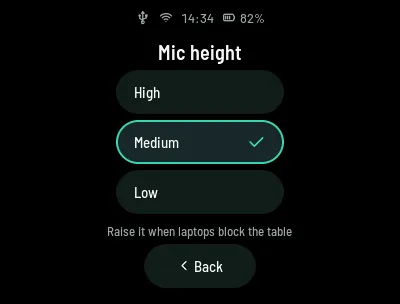
The Wave’s microphones sit on a motorised lift. Menu → Mic height has three
stops: High (50 mm), Medium (40 mm) and Low (30 mm). The row reads Moving
while the lift moves. If something blocks it, the row shows a warning; tap the
same height to try again. The choice is saved in config.toml
(device.mic_height) and in the Wave’s microcontroller, which raises the lift
to it at power-on.
Status: Works on the Wave (2026-10-13): High and Low move the lift, each
move ends when the lift stops, and the choice is saved in config.toml. Not
yet checked on a Wave: the warning when something blocks the lift (a gentle
finger on it did not trigger one), the retract at power off, and the height
the lift rises to after a power cycle.
More: MCU protocol.
Wave Controller
Section titled “Wave Controller”Insta360’s Wave Controller desktop app talks to the Wave over its USB HID interface. Stock calls this “PC Link”. waved answers the same protocol, built from the decompiled stock firmware 1.2.2.6: device info and status, speaker and microphone volume and mute, the audio mode, starting, stopping, pausing and resuming a recording, Wi-Fi status and the time zone. The PIN check uses the same PIN as the Wave’s keypad. Cloud and account-binding commands get an “unsupported” reply.
Whether the app works with a Wave that is not bound to an Insta360 account is the first open question.
Status: Built from the decompiled stock code; not yet tried with the real app.
More: Wave Controller protocol.